Using campaign reporting, you can clearly see which recipients responded to your messages and which ones did not. For example, if you send a campaign asking employees to confirm their contact details by replying with “Yes” and their full name, these reports help you quickly identify who has responded and who may need follow-up. Follow the steps in this article to see how this can be achieved.
Note: Due to data retention regulations, only the past 12 months of messaging and reporting history are stored.
Export the lists
-
Navigate to Messaging > SMS messaging > Campaign Reports and click on the name of the campaign:
-
In the bottom window, click on Outbound and then Export view/ tab. The resulting report will be sent to the email address attached to your Sinch Engage account (to learn how to see and update this email address, read this article):
- Export the data from the Inbound tab in the same section (the inbound tab is just next to the Outbound tab). To do this, repeat the same steps as above but for the inbound tab.
You should now have two CSV files in your inbox - save both of them to your computer:
- Save the Outbound file as an "xls" file called "OUTBOUND"
- Save the Inbound file as an "xls" file called "INBOUND"
Compile and review the data
Next, you need compare the data in each file to see which numbers sent a response. This can be done using the "V-Lookup" function in Excel.
- First, open a blank workbook in Excel (or equivalent program), and create two tabs (do this by clicking the "+" symbol at the bottom):
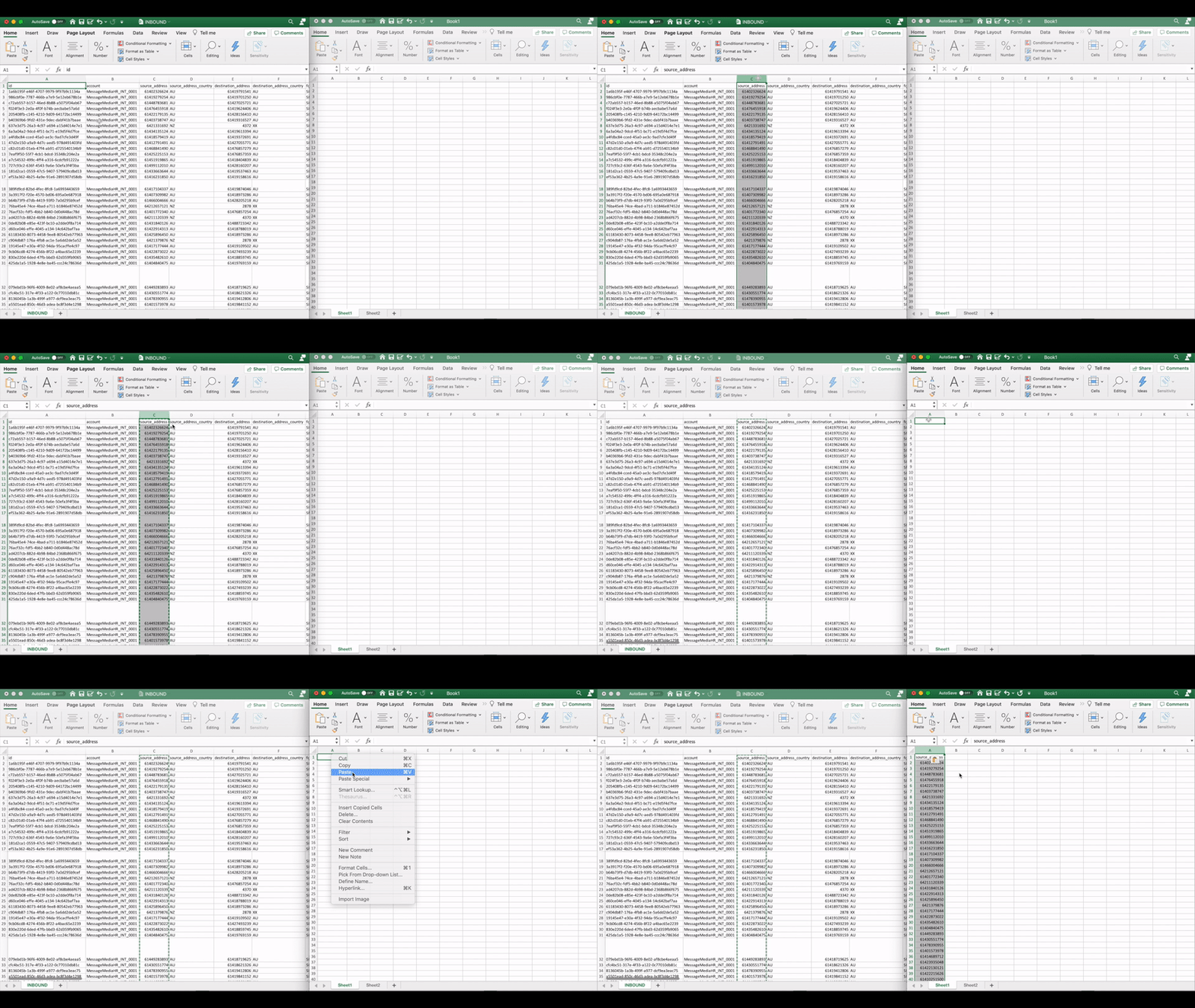
- Next, go to your "INBOUND" spreadsheet and copy column C (source_address), then paste this into the first column of "Sheet 1" in your blank spreadsheet:
-
In column B, add the title "Responded" and put a "Y" into every cell down the column:
-
Next, go to the OUTBOUND spreadsheet, and copy the data from column E ("destination_address") and paste into the first column of "Sheet 2" in your new spreadsheet:

- Now, in cell B2 in Sheet 2 of your new spreadsheet, type the formula "=VLOOKUP(A2,Sheet1!A:B,2,false)" :
-
Press "Enter" and then copy this formula all the way down to the bottom of the column:
The phone numbers with Yes next to them are the ones that have sent a response, and those with #N/A next to them are yet to respond.
From here, you can follow up with those that have not responded to see if they actually did receive the original message, or whether the contact number you have in the database is incorrect.